Tuesday, 10 March 2009

Show delicious saves and tags on blog


This is a useful feature from delicious where you can show how many people have saved your page as a bookmark on delicious and the tags people have used.

You can probably see this at the bottom of this page.

Just go to http://delicious.com/help/tagometer and it has a snippet of javascript to copy and paste into your page.

To add a snippet of html/javascript to blogger have a look at the help site.

Wednesday, 4 March 2009

Adding ClearCase commands to Visual Studio context menu

If you are using Visual Studio and clearcase this is really useful. This puts clearcase functions like opening the version tree into the menu when you right click on a file in solution explorer.

1. The following link shows you how to add new menu items to the context menu when you select file in the solution explorer:

http://www.sharpregion.com/blog/?p=105&cpage=1

2 . Just add the following bit of code to the module ContextCommads or download the full file from here:


3. Now Repeat steps 7 to 9 from the afore mentioned link Extending the Visual-Studio Context-Menu for the following three subs :

VersionTree - this opens up the clearcase version tree for the selected file
HijackFileCommand - hjacks the selected file (makes it writeable)
ClearCaseAnnotateCommand - calls the clearcase annotate command to show who and when each change was made on the selected file

Thats it. Now right click on a file and you will have these options available

Thursday, 26 February 2009

My top tools that every software developer should have

Here's my list of tools that make my day to day work a lot easier as a developer and some tools which are just useful to have on your desktop

Notepadd ++

Now this is the dog's dangly bits on text editors. It has built in syntax highlighters for nearly all formats, you can add your own syntax highlighters. You can open files in multiple tabs , firefox style and a whole host of other useful features. I use it for sql file edits, viewing log files , xml editing , batch file editing , etc , etc.


Free: YES
http://notepad-plus.sourceforge.net/uk/site.htm


BareGrep

The fastest file searcher I have found that's free! It can search through sub directories and use regexp if you need to. Very useful for search through tons of log files.

Free : YES , but $25 USD version has a few more options
http://www.baremetalsoft.com/baregrep/

BareTail

Acts like a unix tail command but for windows. I.E. it monitors a text file and keeps updating whenever a new line is added. Perfect for log files. A nice feature is that it can highlight particular strings in whatever format you wish

Free : YES , and $25 USD version also has a few more options
http://www.baremetalsoft.com/baretail/

Beyond Compare

Definately the best file (and folder) comparison tool I have used. A perfect replacement to the crappy compare tool in clearcase (See my post Use Beyond Compare in Clearcase).

Free : 30 day evaluation
http://www.scootersoftware.com/

WinMerge

If you don't want to shell out for Beyond Compare , winmerge is a pretty good substitute as it is open source, so yes it is free. One feature it does have that Beyond Compare doesn't is that it does code syntax highlighting in the comparison viewer.

Free : YES
http://winmerge.org/


RocketDock

A thing to place your shortcuts, and makes your windows pc look a bit like a mac. Wow , other geeky developers . See the youtube vid.


Free : YES
http://rocketdock.com/


Executor


A great application to start up any application installed. Very quick and intuitive to use.

Executor

Free: YES
http://www.executor.dk/

Fences

Organise icons on your desktop into little areas called fences. Very useful


Free: YES
http://www.stardock.com/products/fences/

FreeUndelete

It does what is says on the tin! It undeletes file you thought you lost! Can be a lifesaver, actually it bailed me out today!.

Free : YES
http://www.officerecovery.com/freeundelete/

Process Explorer

It is a super replacement for windows task manager. Get detailed info on each process and easily see parent child processes.


Free: YES
http://technet.microsoft.com/en-us/sysinternals/bb896653.aspx

Everything Search Engine

This is a really great tool to search for files . It is really lightweight and superfast. It indexes in the background , so when you search for something it is almost instant.


Search Everything

Free : YES

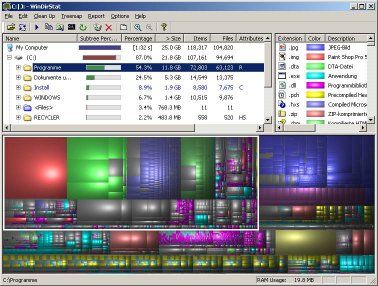
If you are always running out of disk space, this is the tool for you. It shows you your big folders and files and has a nice little map of your drive.

If you want something to work cross platform see some other suggestions from lifehacker:


Free : YES


Thursday, 12 February 2009

Facebook Connect on Blogger

This post is to test out using facebook connect on blogger using disqus.

So leave a comment and see what happens.

I followed the instructions from:

http://manofmanywords.blogspot.com/2008/12/do-you-have-blog-on-blogger-wordpress.html

Monday, 26 January 2009

Export SQL Server tables to Excel in c#

This piece of code executes a sql query on a sql server database and returns the result into a excel workbook (with column headings included).

Remember to add the following references (Project > Add Reference > COM)

Microsoft Excel 12.0 Object Library (or an older version)


using System;
using System.Collections.Generic;

using System.Linq;
using System.Text;
using System.Data.SqlClient;

using Excel = Microsoft.Office.Interop.Excel;
using System.Reflection;

namespace ExportDBTablesToExcel
{
class ExportToExcel
{

private Excel.Application app ;

private Excel.Workbook workbook;
private Excel.Worksheet previousWorksheet;

private Excel.Range workSheet_range;

private string folder;

private static string CONNECTION_STR = "Data Source=(local);Database=DATABASE_NAME;"
+ "Integrated Security=SSPI;";


public ExportToExcel(string folder)
{

this.folder = folder;

this.app = null;
this.workbook = null;

this.previousWorksheet = null;
this.workSheet_range = null;


createDoc();
}

private void createDoc()

{
try
{
app = new Excel.Application();

app.Visible = false;
workbook = app.Workbooks.Add(1);


}
catch (Exception e)
{
Console.Write(e.ToString());

}
finally
{
}
}

public void shutDown()

{
try
{
workbook = null;

app.Quit();
}
catch (Exception e)

{
Console.Write(e.ToString());
}

finally
{
}
}

public void ExportTable(string query,string sheetName)

{
SqlConnection myConnection = new SqlConnection(CONNECTION_STR);

SqlDataReader myReader = null;

try
{

Excel.Worksheet worksheet = (Excel.Worksheet)workbook.Sheets.Add(Missing.Value, Missing.Value, 1, Excel.XlSheetType.xlWorksheet);

worksheet.Name = sheetName;

previousWorksheet = worksheet;


myConnection.Open();


SqlCommand myCommand = new SqlCommand(query,
myConnection);

myReader = myCommand.ExecuteReader();

int columnCount = myReader.FieldCount;

for (int n = 0; n < columnCount; n++)

{
Console.Write(myReader.GetName(n) + "\t");

createHeaders(worksheet, 1, n + 1, myReader.GetName(n));

}

int rowCounter = 2;
while (myReader.Read())

{
for (int n = 0; n < columnCount; n++)

{
Console.WriteLine();
Console.Write(myReader[myReader.GetName(n)].ToString() + "\t");

addData(worksheet, rowCounter, n + 1, myReader[myReader.GetName(n)].ToString());

}
rowCounter++;
}


}

catch (Exception e)
{
Console.WriteLine(e.ToString());

}
finally
{
if (myReader!=null && !myReader.IsClosed)

{
myReader.Close();
}

if (myConnection != null)

{
myConnection.Close();
}

myReader = null;
myConnection = null;
}

}


public void createHeaders(Excel.Worksheet worksheet,int row, int col, string htext)

{
worksheet.Cells[row, col] = htext;


}

public void addData(Excel.Worksheet worksheet,int row, int col, string data)

{
worksheet.Cells[row, col] = data;

}


public void SaveWorkbook(){

String folderPath = "C:\\My Files\\" + this.folder ;

if (!System.IO.Directory.Exists(folderPath)) {

System.IO.Directory.CreateDirectory(folderPath);

}

string fileNameBase = "db" ;
String fileName = fileNameBase;
string ext = ".xlsx" ;
int counter = 1 ;

while (System.IO.File.Exists(folderPath+fileName+ext)){

fileName = fileNameBase + counter;
counter++ ;
}

fileName = fileName +ext ;

string filePath = folderPath + fileName ;

try
{
workbook.SaveAs(filePath, Excel.XlFileFormat.xlWorkbookDefault, Missing.Value, Missing.Value, Missing.Value, Missing.Value, Excel.XlSaveAsAccessMode.xlNoChange, Missing.Value, Missing.Value, Missing.Value, Missing.Value, Missing.Value);

}
catch (Exception e)
{
Console.WriteLine(e.ToString());

}
}


static void Main(string[] args)

{

ExportToExcel export = new ExportToExcel(args[0]);

export.ExportTable("SELECT * FROM t_table1","t_table1");
export.ExportTable("SELECT * FROM t_table2","t_table2");
export.ExportTable("SELECT * FROM t_table3","t_table3");
export.SaveWorkbook() ;

export.shutDown();
}


}

}


This code is based on the following links:

http://www.codeproject.com/KB/cs/Excel_and_C_.aspx

and
http://www.codeproject.com/KB/database/sql_in_csharp.aspx?fid=16002&df=90&mpp=25&noise=3&sort=Position&view=Quick&fr=26&select=1490011

Wednesday, 21 January 2009

Read an Excel document and Send an email from outlook in c# .net

This is a handy example if you need to read an excel document and/or send an email from outlook in some c# code.

Remember to add the following references (Project > Add Reference > COM)

Microsoft Excel 12.0 Object Library
Microsoft Office 12.0 Object Library
Microsoft Outlook 12.0 Object Library

if you have older versions of office , they should work too.

using System;
using System.Collections.Generic;

using System.Linq;
using System.Text;
using Excel = Microsoft.Office.Interop.Excel;

using Outlook = Microsoft.Office.Interop.Outlook;
using Microsoft.Office.Core;

namespace StatusNotifier
{
class StatusNotifier
{
static void Main(string[] args)

{
string Path = @"D:\MyExcelFile.xls";
// initialize the Excel Application class

Excel.ApplicationClass app = new Excel.ApplicationClass();

// create the workbook object by opening the excel file.
Excel.Workbook workBook = app.Workbooks.Open(Path,
0,
true,
5,
"",
"",
true,
Excel.XlPlatform.xlWindows,
"\t",
false,
false,
0,
true,
1,
0);

// get the active worksheet using sheet name or active sheet
Excel.Worksheet workSheet = (Excel.Worksheet)workBook.Worksheets[1];

int index = 0;
// This row,column index should be changed as per your need.
// i.e. which cell in the excel you are interesting to read.
object rowIndex = 2;


object colA = 1;
object colB = 2 ;


StringBuilder message = new StringBuilder();

message.AppendLine("My Message");

message.AppendLine("--------------");
message.AppendLine("");


//----------------------------

//READ EXCEL WORKBOOK
//------------------------------

try
{
while (((Excel.Range)workSheet.Cells[rowIndex, colDateRaised]).Value2 != null)

{
rowIndex = 2 + index;
DateTime dateRaised = DateTime.FromOADate(double.Parse(((Excel.Range)workSheet.Cells[rowIndex, colA]).Value2.ToString()));

string description = ((Excel.Range)workSheet.Cells[rowIndex, colB]).Value2.ToString();


message.AppendLine(rowIndex + " DateRaised :" + dateRaised.ToShortDateString() + "Description: " + description) ;


index++;
}
}
catch (Exception ex)

{
app.Quit();
Console.WriteLine(ex.Message);

}

message.AppendLine("For more inforamtion please see:");
message.AppendLine(Path);

Console.WriteLine("Message:\n " + message);

//----------------------------
//CREATE OUTLOOK MESSAGE
//------------------------------

try
{
// Create the Outlook application by using inline initialization.

Outlook.Application oApp = new Outlook.Application();

//Create the new message by using the simplest approach.
Outlook.MailItem oMsg = (Outlook.MailItem)oApp.CreateItem(Outlook.OlItemType.olMailItem);

//Add a recipient.
// TODO: Change the following recipient where appropriate.
Outlook.Recipient oRecip = (Outlook.Recipient)oMsg.Recipients.Add("someone@somewhere.com");

oRecip.Resolve();

//Set the basic properties.
oMsg.Subject = "Status Update";

oMsg.Body = message.ToString();

//Add an attachment.

// TODO: change file path where appropriate
String sSource = "C:\\setupxlg.txt";
String sDisplayName = "MyFirstAttachment";

int iPosition = (int)oMsg.Body.Length + 1;

int iAttachType = (int)Outlook.OlAttachmentType.olByValue;

Outlook.Attachment oAttach = oMsg.Attachments.Add(sSource, iAttachType, iPosition, sDisplayName);

// If you want to, display the message.
// oMsg.Display(true); //modal

//Send the message.
oMsg.Save();

oMsg.Send();

//Explicitly release objects.
oRecip = null;

oAttach = null;
oMsg = null;
oApp = null;

}

// Simple error handler.
catch (Exception e)
{

Console.WriteLine("{0} Exception caught: ", e);
}


}
}
}

This code is based upon examples from the following links:

Excel: http://www.codeproject.com/KB/cs/Excel_Application_in_C_.aspx
Outlook: http://support.microsoft.com/kb/310263

Tuesday, 20 January 2009

Clearcase update from command line showing dialog and windows

If you like doing things from the command line but you want the update progress bar , etc to pop up, then this is quite useful.

c:
cd "C:\Program Files\Rational\ClearCase\bin"
"clearviewupdate" -quick -window 1f00f4 -windowmsg c14e -ws "Path Here"


If you don't want the update dialog to pop up you can use:

cleartool update "Path Here"