Continuing the theme of talking Raspberry Pi's from my recent posts (Get your RPi to Speak the News and Turn your RPi into a Amazon Echo like device), using the brilliant service IFTTT (If This Then That), I've created a way the my Raspberry Pi reads out a notification whenever I receive a SMS on my (android) mobile phone.

IFTTT is a free web-based service that allows users to create chains of simple conditional statements, called "applets", which are triggered based on changes to other web services such as Gmail, Facebook, Instagram, and Pinterest. IFTTT is an abbreviation of "If This Then That".
The below shows the sequence of events of how information regarding a SMS received on your phone ends up on the Raspberry Pi.

In IFTTT, you create an "applet", which fires a trigger when an SMS arrives on your phone, it then sends this info to the central IFTTT service which then performs an action you select. This action could be to turn on light using something like WeMo or Phillips Hue, or adding a row in a Google Sheet, or even sending a Gmail. But in this case the action is to send a webrequest to my raspberry pi. The web request is handled by some PHP code using JSON , which reads the info send and then executes
Please note I am using the Android SMS trigger on IFTTTT. There doesn't seem to be an equivalent for IPhones
Please note I am using the Android SMS trigger on IFTTTT. There doesn't seem to be an equivalent for IPhones
So what do you need to set this up:
1. Setup your Pi as a Webserver
The below 3 steps are covered on the site: http://www.penguintutor.com/linux/light-webserver
- Raspberry Pi running a web server such as lighttpd
- Have a fixed IP or use a dynamic dns service such as noip.com to you have a URL which connects to your Raspberry Pi . You may also need to setup your home router to forward incoming http requests to your Raspberry Pi
- Install PHP to right server side code to handle IFTTT actions and/or to run other web applications you may want to write.
2. Setup Script to execute Text to Speech
- Follow steps 1 and 2 on the following post I wrote to setup a script which uses the Google Translate service:
- You can download the bash script we will use from:
3. Setup PHP page to handle request
- Create a file readSMS.php in your /var/www directory (this is the default for lighttpd) with the following content :
if ($_SERVER['REQUEST_METHOD'] == 'POST')
{

   $data = file_get_contents("php://input");

 //Removes all 3 types of line breaks
 $data = str_replace("\r", " ", $data);
 $data = str_replace("\n", " ", $data);

 $result = json_decode($data, true);

 $myfile = fopen("readSMStest.txt", "w") or die("Unable to open file!");
 fwrite($myfile, $data);


 $strText = "SMS received from " . $result['contact'];
 fwrite($myfile,"\n" .$strText);
 fclose($myfile);

 $strCommand = "sudo /home/pi/Documents/speech.sh" . " " .  $strText ;

 exec($strCommand, $command_output);

 foreach($command_output as $line) :

  echo $line  ;

 endforeach;

}

?>
- This code reads the input from an HTTP Post (we will setup IFTTT later to send an http post request) , decodes the JSON sent by IFTTT, and extracts the contact name of who sent the SMS to your phone. It then executes the speech.sh script which you should have set up from the previous step.
- You may need to change the $strCommand string to the location of where you saved the speech.sh file
- The script also for debugging purposed writes a text file readSMStest.txt to the same folder
- The above can be downloaded from:
4. Create Applet in IFTTT
- Sign up to IFTTT and download the app to your phone
- In the IFTTT site click on My Applets then on the New Applet button
- You will see the below Applet Maker, click on the "+ this" to setup the trigger (which is any SMS received)
- Start typing "android" and then click on "Android SMS"
- Now click on "Any new SMS received"
- Now click on "+that" to setup the Action
- Start typing "maker" and select the "Maker" action service.
- Click on "Make a web request"
- Fill in the web request as below:
- Change the URL to the address of your webserver.
- The JSON Body Text is below which is easier to copy and paste. This sends the info about your SMS message to your php page using JSON
- Hit Save and you're done
- You can rename the Applet to whatever you want, and can toggle whether you want logging


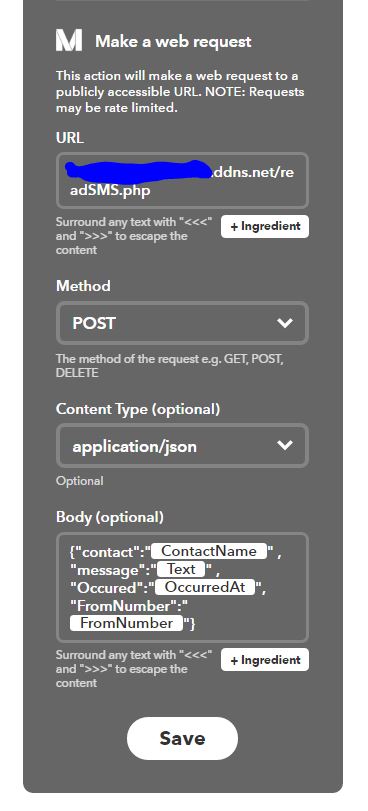
{"contact":"{{ContactName}}" , "message":"{{Text}}" , "Occured":"{{OccurredAt}}", "FromNumber":"{{FromNumber}}"}
5.Test it out
Now all you need to do is test it out. Get somebody to send you a text or send one to yourself and hopefully you should hear your Raspberry PI (remember to turn on the speakers and volume is up) say "SMS received from" and then the name from your address book
6.Customise it
Now you can tailor this to do whatever you want. Maybe read out the full message, or use one for the other triggers. Or maybe get your php page to perform some other action like turning on lights
Hope the above is helpul. Any problems , please leave something in the comments.

