Tuesday, 17 January 2017

Get your Raspberry PI to Read Out your Text Messages using IFTTT

Continuing the theme of talking Raspberry Pi's from my recent posts (Get your RPi to Speak the News and Turn your RPi into a Amazon Echo like device), using the brilliant service IFTTT (If This Then That), I've created a way the my Raspberry Pi reads out a notification whenever I receive a SMS on my (android) mobile phone.

If you don't know what IFTTT is, wikipedia calls it :

IFTTT is a free web-based service that allows users to create chains of simple conditional statements, called "applets", which are triggered based on changes to other web services such as Gmail, Facebook, Instagram, and Pinterest. IFTTT is an abbreviation of "If This Then That".

The below shows the sequence of events of how information regarding a SMS received on your phone ends up on the Raspberry Pi.


In IFTTT, you create an "applet",  which fires a trigger when an SMS arrives on your phone, it then sends this info to the central IFTTT service which then performs an action you select. This action could be to turn on light using something like WeMo or Phillips Hue, or adding a row in a Google Sheet, or even sending a Gmail. But in this case the action is to send a webrequest to my raspberry pi.  The web request is handled by some PHP code using JSON , which reads the info send and then executes

Please note I am using the Android SMS trigger on IFTTTT. There doesn't seem to be an equivalent for IPhones

So what do you need to set this up:

1. Setup your Pi as a Webserver

The below 3 steps are covered on the site: http://www.penguintutor.com/linux/light-webserver
  • Raspberry Pi running a web server such as lighttpd
  • Have a fixed IP or use a dynamic dns service such as noip.com to you have a URL which connects to your Raspberry Pi . You may also need to setup your home router to forward incoming http requests to your Raspberry Pi
  • Install PHP to right server side code to handle IFTTT actions and/or to run other web applications you may want to write. 
2. Setup Script to execute Text to Speech 
3. Setup PHP page to handle request 

  • Create a file readSMS.php in your /var/www  directory (this is the default for lighttpd) with the following content :


if ($_SERVER['REQUEST_METHOD'] == 'POST')
{

   $data = file_get_contents("php://input");

 //Removes all 3 types of line breaks
 $data = str_replace("\r", " ", $data);
 $data = str_replace("\n", " ", $data);  

 $result = json_decode($data, true);

 $myfile = fopen("readSMStest.txt", "w") or die("Unable to open file!");
 fwrite($myfile, $data);


 $strText = "SMS received from " . $result['contact'];
 fwrite($myfile,"\n" .$strText);
 fclose($myfile);

 $strCommand = "sudo /home/pi/Documents/speech.sh" . " " .  $strText ; 

 exec($strCommand, $command_output);

 foreach($command_output as $line) :

  echo $line  ;

 endforeach;

}

?>

  • This code reads the input from an HTTP Post (we will setup IFTTT later to send an http post request) , decodes the JSON sent by IFTTT, and extracts the contact name of who sent the SMS to your phone. It then executes the speech.sh script which you should have set up from the previous step. 
  • You may need to change the $strCommand string to the location of where you saved the speech.sh file
  • The script also for debugging purposed writes a text file readSMStest.txt to the same folder
  • The above can be downloaded from:

4. Create Applet in IFTTT

  • Sign up to IFTTT and download the app to your phone 
  • In the IFTTT site click on My Applets then on the New Applet button
  • You will see the below Applet Maker, click on the "+ this" to setup the trigger (which is any SMS received)


  • Start typing "android" and then click on "Android SMS"
  • Now click on "Any new SMS received"

  • Now click on "+that" to setup the Action
  • Start typing "maker" and select the "Maker" action service. 
  • Click on "Make a web request"
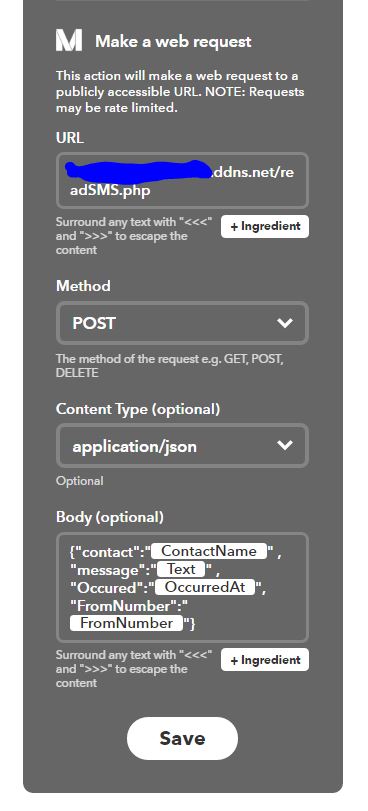
  • Fill in the web request as below:
    • Change the URL to the address of your webserver. 
    • The JSON Body Text is below which is easier to copy and paste. This sends the info about your SMS message to your php page using JSON
    • {"contact":"{{ContactName}}" , "message":"{{Text}}" , "Occured":"{{OccurredAt}}", "FromNumber":"{{FromNumber}}"}
      

  • Hit Save and you're done 
  • You can rename the Applet to whatever you want, and can toggle whether you want logging

5.Test it out

Now all you need to do is test it out. Get somebody to send you a text or send one to yourself and hopefully you should hear your Raspberry PI (remember to turn on the speakers and volume is up) say "SMS received from" and then the name from your address book

6.Customise it

Now you can tailor this to do whatever you want. Maybe read out the full message, or use one for the other triggers. Or maybe get your php page to perform some other action like turning on lights


Hope the above is helpul. Any problems , please leave something in the comments.


Wednesday, 11 January 2017

Building an Amazon Echo Like Device with a Raspberry Pi and Google Cloud Speech Api

In my previous post I showed how I wrote a python script to read out the latest news headlines using Googles text to speech api.  As I commented in that post, voice recognition and talking devices seem to be the in thing with the release of the Amazon Echo and Google Home.

In this post I show how I created a python script to record sound on your raspberry pi, invoke the google cloud speech api to interpret what was said, and then perform a command on your raspberry pi - so a bit like a basic Amazon Echo.

Setting up your mic

Before I get into the python code, you need a mic setup. As the Raspberry Pi does not have a soundcard you will need a USB mic or a webcam which has an inbuilt mic. I went for the latter and used a basic webcam from logitech.

Once you have your mic plugged in, follow the instructions in the "Step 1: Checking Your Microphone" in: https://diyhacking.com/best-voice-recognition-software-for-raspberry-pi/

Install prerequisites

There is one python library you need which is pycURL, which is used to send data to the Google Cloud Speech Api. Follow the instructions here: http://pycurl.io/docs/latest/install.html

You will also need to install SoX which is an opensource tool to analyse sound files. This is used in the script to detect whether any sound is on the recorded audio, before trying to send it to the google api.

You can install this by running:

 sudo apt-get install sox

One more thing to install, flac . Flac is used to record your sound file in a lossless format which is required by the google api:

You can install this by running:


 sudo apt-get install flac

Setup Google Cloud Speech Api

To do the voice to text processing I am using the speech api which is part of Google Cloud. It is in beta at the moment and offering a free trial.

Follow the instructions on the their site to get your api key which will be needed in the script:

The current downside I've found with this api is the latency. It's currently taking 5-6 seconds for a response to process a 2 second audio file. The google help files yes the response time should be similar to the length of audio being processed. 

Python Script

Now to the actual python code. 

All the files required can be downloaded from here:


The main file to look at is speechAnalyser.py.

This script does the following:

1. If no audio is playing (you don't want to record if you're playing something on your speakers), records sound from your microphone for 2 seconds
2. Uses SoX to check if any sound is on the file and is above a certain amplitude - this helps to not bother processing when there is silence or just background noises
3. If there is sound at a sufficient amplitude, then send the audio to the google api with a JSON message. As said earlier the google api takes a 5-6 seconds and returns a JSON message with the words detected.
4. If the trigger word in this case "Jarvis" is said during these two seconds, a beep sound is played.
5 Records another 3 seconds to listen for a user speaking a commandand sends to the google api like step 3
6.Checks if keyword found in returned text and executes the appropriate command. For example if "news" is mentioned it invokes the GetNews script which I described in my previous post.
7. Loops back to Step 1. 

Remeber to change the line below where it says with the key which was provided when you set up the Google Cloud Speech api


key = ''
stt_url = 'https://speech.googleapis.com/v1beta1/speech:syncrecognize?key=' + ke

Also you should customise your commands in the following section of code:

def listenForCommand(): 
 
 command  = transcribe(3)
 
 print time.strftime("%Y-%m-%d %H:%M:%S ")  + "Command: " + command 

 success=True 

 if command.lower().find("light")>-1  and  command.lower().find("on")>-1   :
  subprocess.call(["/usr/local/bin/tdtool", "-n 1"])
   
 elif command.lower().find("light")>-1  and  command.lower().find("off")>-1   :
  subprocess.call(["/usr/local/bin/tdtool", "-f 1"])
 elif command.lower().find("news")>-1 :
                os.system('python getNews.py')

  elif command.lower().find("weather")>-1 :
                os.system('python getWeather.py')
 
 elif command.lower().find("pray")>-1 :
                os.system('python sayPrayerTimers.py')
 
        elif command.lower().find("time")>-1 :
                subprocess.call(["/home/pi/Documents/speech.sh", time.strftime("%H:%M") ])
 
 elif command.lower().find("tube")>-1 :
                 os.system('python getTubeStatus.py')
 else:
  subprocess.call(["aplay", "i-dont-understand.wav"])
  success=False

 return success 

The other interesting part of the script to look at is, where it sends the data over to the Google Cloud Speech Api.

It creates a JSON message, and then encodes the audio in base64.

Within the outgoing JSON message, there is a phrases section, where I've included my trigger word "Jarvis", which makes it more likely the speech engine recognises this

The final bit then gets the text from the response.


#Send sound  to Google Cloud Speech Api to interpret
 #----------------------------------------------------
 
 print time.strftime("%Y-%m-%d %H:%M:%S ")  + "Sending to google api"


   # send the file to google speech api
 c = pycurl.Curl()
 c.setopt(pycurl.VERBOSE, 0)
 c.setopt(pycurl.URL, stt_url)
 fout = StringIO.StringIO()
 c.setopt(pycurl.WRITEFUNCTION, fout.write)
 
 c.setopt(pycurl.POST, 1)
 c.setopt(pycurl.HTTPHEADER, ['Content-Type: application/json'])

 with open(filename, 'rb') as speech:
  # Base64 encode the binary audio file for inclusion in the JSON
         # request.
         speech_content = base64.b64encode(speech.read())

 jsonContentTemplate = """{
    'config': {
         'encoding':'FLAC',
         'sampleRate': 16000,
         'languageCode': 'en-GB',
   'speechContext': {
        'phrases': [
         'jarvis'
      ],
     },
    },
    'audio': {
        'content':'XXX'
    }
 }"""


 jsonContent = jsonContentTemplate.replace("XXX",speech_content)

 #print jsonContent

 start = time.time()

 c.setopt(pycurl.POSTFIELDS, jsonContent)
 c.perform()


 #Extract text from returned message from Google
 #----------------------------------------------
 response_data = fout.getvalue()


 end = time.time()
 #print "Time to run:" 
 #print(end - start)


 #print response_data

 c.close()
 
 start_loc = response_data.find("transcript")
     temp_str = response_data[start_loc + 14:]
 #print "temp_str: " + temp_str
     end_loc = temp_str.find("\""+",")
     final_result = temp_str[:end_loc]
 #print "final_result: " + final_result
     return final_result


I have to give a big shout out to the following sites which gave me ideas on how to write this script:

https://diyhacking.com/best-voice-recognition-software-for-raspberry-pi/ - This contains the instructions on how to setup a microphoen on the raspberry pi
https://github.com/StevenHickson/PiAUISuite - Full Application which does what the above script does but is configurable. But not sure if it still works with the new Google Speech Api

Thursday, 15 December 2016

Get your Raspberry Pi to Speak the News


Talking devices are the in thing at the moment with the Amazon Echo and the newer Google Home, so I thought I would try to get my raspberry pi to read out the news.

Here's what you need to do:

1, Install mplayer (audio player) on your raspberry pi
2. Setup a script to invoke Google Translates text to speech engine
3. Create a Python Script to pull the latest headlines from the BBC rss feed and then read them out
4. Add the script as a cron job to run every hour

Below is the detail behind each step

1. Install mplayer on your raspberry pi

(The below instructions are based on http://elinux.org/RPi_Text_to_Speech_(Speech_Synthesis))

a. First you will need to update Raspian (this can take up to an hour if not run in some time)

sudo apt-get update
sudo apt-get upgrade

b. Add sound utilities

 sudo apt-get install alsa-utils

c. Edit the follow file with the line

sudo nano /etc/modules

to have line

 snd_bcm2835 

d. Install mplayer

sudo apt-get install mplayer

2. Setup a script to invoke Google Translates text to speech engine

a. Create a file call speech.sh with the following content:


#!/bin/bash
say() { local IFS=+;/usr/bin/mplayer -volume 100 -ao alsa -really-quiet -noconsolecontrols "http://translate.google.com/translate_tts?ie=UTF-8&client=tw-ob&q=$*&tl=En-us"; }
say $*


b. Add execute permissions to the script

chmod u+x speech.sh

c. Test it out


./speech.sh Hello I can talk

Remember you will need speakers plugged into your raspberrypi to hear anything!

3. Create a Python Script to pull the latest headlines from the BBC rss feed and then read them out

a, Install feedparser which is a python libararyto read RSS feeds. Follow the instructions from the below link:

https://pypi.python.org/pypi/feedparser#downloads

b. Create a file getNews.py with the following content


##!/usr/bin/env python

import subprocess
import feedparser
import time 


d = feedparser.parse('http://feeds.bbci.co.uk/news/rss.xml?edition=uk')

introMessage = "BBC News Headlines at " + time.strftime("%H:%M") 

subprocess.call(["/home/pi/Documents/speech.sh", introMessage])

maxItems = 3
itemCounter = 0 

for post in d.entries:
        print post.title
 subprocess.call(["/home/pi/Documents/speech.sh", post.title])
 itemCounter = itemCounter + 1
 if itemCounter == maxItems:
  break

Remember to change the location to where you saved speech.sh
Also change maxItems if you want the script to read out more than 3 headlines. 
You could change the link to another news website of your choice as long as they provide a rss feed.

c. Test the file


python getNews.py

You should hear the top 3 headlines read out

4. Add the script as a cron job to run every hour (or how every frequently you want)

a. Open crontab with:

crontab -e

b. Add the line


@hourly python /home/pi/Documents/getNews.py > /dev/null 2>&1


Check out the following site on how to set up cron jobs if not familiar:
http://www.howtogeek.com/101288/how-to-schedule-tasks-on-linux-an-introduction-to-crontab-files/


And there you go, you now have a news reading speaking rasperberry pi. You could adapt this to read out any other type of site which uses rss feeds.

The following files can be downloaded from the links below:

getNews.py
speech.sh


Wednesday, 24 July 2013

Turn your Raspberry Pi into an Azaan/Prayer clock


Recently I've been playing with the raspberry pi and given it's Ramadan, I thought I'd see if I could turn it into an Azaan (Islamic call to prayer) clock. Given the RPI is low powered I can leave it on and it doesn't need a monitor, keyboard, mouse, etc plugged in.

This is what I did:

1. Plug in a speaker into the 3.5mm audio output on the raspberry pi

2. Download python code from prayTimes.org to calculate prayer times

3. Download azaan mp3 from prayTimes.org again.

4. Write a python script to set jobs in crontab to play the azaan mp3 at the appropriate time (see code below or download here). The python code from prayTimes.org has to be in the same folder for this to work.

My script utilizes the python crontab library. More info on setting this up available on the links below

Python crontab: http://pypi.python.org/pypi/python-crontab/
Installing modules: http://docs.python.org/2/install/index.html

The bits you may need to configure yourself are:

a) Longitude and Latitude (currently set to London UK)
lat = 51.5171
long = 0.1062

b) Timezone (currently set to 0+GMT and daylight savings =1 )
times = PT.getTimes((now.year,now.month,now.day), (lat, long), 0,1) 

c) Location of azaan mp3:
strPlayAzaanMP3Command = 'omxplayer -o local /home/pi/Downloads/Abdul-Basit.mp3 > /dev/null 2>&1'

The code from prayTimes.org is really configurable, so you can change the prayer time calculation method and a whole load of other adjustments. 

5. Add a job in crontab to run this script on a daily basis to update the azaan times:

# m     h       dom     mon     dow     command
0 1 * * * python /home/pi/Documents/updateAzaanTimers.py > /dev/null 2>&1

6. You're done. For each prayer , the raspberry pi will play the azaan mp3 via the speaker.

For All code and audio files I've used/written are available on the link below:
https://www.dropbox.com/sh/r0e787digng1rgv/OmCXiu9Vx_/RPi%20Azaan%20Clock


#!/usr/bin/env python

import datetime
from praytimes import PrayTimes


#Get Prayer Times
#--------------------
lat = 51.5171
long = 0.1062

now = datetime.datetime.now()


PT = PrayTimes('ISNA') 
times = PT.getTimes((now.year,now.month,now.day), (lat, long), 0,1) 

print times['fajr']
print times['dhuhr']
print times['asr']
print times['maghrib']
print times['isha']


#Update Crontab with Prayer Times
#---------------------------------

from crontab import CronTab


#Function to add azaan time to cron
def addAzaanTime (strPrayerName, strPrayerTime, objCronTab, strCommand):

  job = objCronTab.new(command=strCommand,comment=strPrayerName)
  
  timeArr = strPrayerTime.split(':')

  hour = timeArr[0]
  min = timeArr[1]

  job.minute.on(int(min))
  job.hour.on(int(hour))

  print job

  return


system_cron = CronTab()

strPlayAzaanMP3Command = 'omxplayer -o local /home/pi/Downloads/Abdul-Basit.mp3 > /dev/null 2>&1'

jobs = system_cron.find_command(strPlayAzaanMP3Command)

print jobs

for j in jobs:
  system_cron.remove(j) 

addAzaanTime('fajr',times['fajr'],system_cron,strPlayAzaanMP3Command)
addAzaanTime('dhuhr',times['dhuhr'],system_cron,strPlayAzaanMP3Command)
addAzaanTime('asr',times['asr'],system_cron,strPlayAzaanMP3Command)
addAzaanTime('maghrib',times['maghrib'],system_cron,strPlayAzaanMP3Command)
addAzaanTime('isha',times['isha'],system_cron,strPlayAzaanMP3Command)


system_cron.write()


Thursday, 4 November 2010

Fix when Android Market cannot download


On my G1 running Android 1.6, I started to have problems with the Android Market. Any application that I tried to update or install resulted in an error message saying that the download was unsuccessful.

Luckily with a bit of googling, this is what I did to resolve the problem

1. Open Settings
2. Select Applications
3. Select Manage Applications
4. Select Market and the select Clear Cache
5. Repeat step 4 and clear the cache for Google Apps, Google Talk and Checkin Service.
6. Restart your phone

When you open the market it will ask you to login to your google account with your username and password. Once logged in , you will be able to download  and update apps.

These instructions are based on:
http://www.technipages.com/android-market-download-unsuccessful-error-fix.html

Thursday, 5 August 2010

Install Flash in Google Chrome Portable without Admin Rights

If you need to install Chrome and you don't have admin rights on your windows machine, then the best thing to do is to use a portable version, available from portableapps.com :

http://portableapps.com/apps/internet/google_chrome_portable

You can put this anywhere on your machine or even on a usb stick.

However if you want to use sites like youtube or google streetview, you will need Adobe Flash Player. As you don't have admin rights you will not be able to run the standard abobe installer.

This is what you need to do instead:

1. Download this file from Adobe: http://fpdownload.macromedia.com/get/flashplayer/xpi/current/flashplayer-win.xpi

2. Rename the file extenion from .xpi to .zip

3. Use an unzip program like winzip or 7-zip to extract the contents

4. Copy the files flashplayer.xpt and NPSWF32.dll from the contents of the zip to the folder \App\Chrome-Bin\5.0.375.55\Plugins

This will be where you installed Google Chrome and the 5.0.365.55 folder might be named differently.

5. Restart Chrome and enter this in the address bar: about:plugins . You should see Shockwave Flash listed as a plugin.

6. Try out youtube.com

These instructions are kind of based on:
http://eurekatips.com/2009/05/05/flash-google-chrome-manual-permission-portable/724/

Friday, 23 July 2010

Run a command and read console output in VB6 / VBA

Needed to run a command line program from code and read the input. Found this useful code to do it:

Wednesday, 30 June 2010

Official Skype Install for Acer Aspire 1 (aa1)

Just got Skype running on my aa1 running Linpus Linux. There are a few blog posts out there with instructions, but I found an official download from Acer which is a lot more straight forward and worked for me where other methods didn't.

Just follow the instructions at: http://www.acer.com/aspireone/support/files/connect.html#002

There are also instructions too on how to install support for 3G USB sticks (Huawei 3G dongles) which I haven't tried out , buy let me know if it works for you: http://www.acer.com/aspireone/support/files/connect.html#003

Saturday, 8 May 2010

Half of LCD Monitor is Yellow

I have a 19" LCD Monitor from LG . A little while ago the right half of the screen had a yellow tint to it. I played around with the cables for ages but it was no use.

I considered buying a new monitor cable or even returning the monitor for repair until I tried out one thing. I went into the Monitor menu, went into settings and selected Factory Reset.... once I selected this, after a few seconds the screen was back to normal... yipeee ... hope this helps somebody else out.

Tuesday, 11 August 2009

Visual Studio Tricks

I am going to keep this as an ongoing post with whatever tips and tricks I come across when using Visual Studio.

Show Active File In Solution Explorer

When working with big solutions and projects this is so useful. By default visual studio doesn't highlight the file that is active (i.e the one you are viewing) in Solution Explorer.

To activate this do the following:

Tools – Options – Projects and Solutions – Track Active Item in Solution Explorer

Credit for this tip goes to Ronald Widha's blog .

Use the Command Window to Search for Files

In Visual Studio I really miss the equivalent of Eclipse's CTRL - T shortcut to search for classes.

The next best thing I have found is to open the command window ( View > Other Windows > Command Window ) and type:

>open file you're searching for

and a little drop down will pop up of files that start with whatever you have typed in.

More Tricks

Also check out any of my blog entries tagged with visual studio


Monday, 10 August 2009

Installing flash for firefox in xubuntu

This weekend I was trying to get the flash player installed on XUbuntu and working on firefox. Following the instructions on Adobe's site didn't work , but after a bit of googling this is what I did and it worked.

1. Download Adobe Flash Player from http://get.adobe.com/flashplayer/otherversions/. Choose the tar.gz option.

2. Extract the contents of the extracted file to your desktop . The file libflashplayer.so should now be on your desktop

3. Open up a terminal window

4. Enter the following , and replace username with your username.

sudu su
cd /usr/lib/mozilla/plugins/
cp /home/username/desktop/libflashplayer.so .
cd /usr/lib/firefox/plugins/
cp /home/username/desktop/libflashplayer.so .

5. Restart firefox (maybe a couple of times)

6. Test out youtube.com


Tuesday, 10 March 2009

Show delicious saves and tags on blog


This is a useful feature from delicious where you can show how many people have saved your page as a bookmark on delicious and the tags people have used.

You can probably see this at the bottom of this page.

Just go to http://delicious.com/help/tagometer and it has a snippet of javascript to copy and paste into your page.

To add a snippet of html/javascript to blogger have a look at the help site.

Wednesday, 4 March 2009

Adding ClearCase commands to Visual Studio context menu

If you are using Visual Studio and clearcase this is really useful. This puts clearcase functions like opening the version tree into the menu when you right click on a file in solution explorer.

1. The following link shows you how to add new menu items to the context menu when you select file in the solution explorer:

http://www.sharpregion.com/blog/?p=105&cpage=1

2 . Just add the following bit of code to the module ContextCommads or download the full file from here:


3. Now Repeat steps 7 to 9 from the afore mentioned link Extending the Visual-Studio Context-Menu for the following three subs :

VersionTree - this opens up the clearcase version tree for the selected file
HijackFileCommand - hjacks the selected file (makes it writeable)
ClearCaseAnnotateCommand - calls the clearcase annotate command to show who and when each change was made on the selected file

Thats it. Now right click on a file and you will have these options available

Thursday, 26 February 2009

My top tools that every software developer should have

Here's my list of tools that make my day to day work a lot easier as a developer and some tools which are just useful to have on your desktop

Notepadd ++

Now this is the dog's dangly bits on text editors. It has built in syntax highlighters for nearly all formats, you can add your own syntax highlighters. You can open files in multiple tabs , firefox style and a whole host of other useful features. I use it for sql file edits, viewing log files , xml editing , batch file editing , etc , etc.


Free: YES
http://notepad-plus.sourceforge.net/uk/site.htm


BareGrep

The fastest file searcher I have found that's free! It can search through sub directories and use regexp if you need to. Very useful for search through tons of log files.

Free : YES , but $25 USD version has a few more options
http://www.baremetalsoft.com/baregrep/

BareTail

Acts like a unix tail command but for windows. I.E. it monitors a text file and keeps updating whenever a new line is added. Perfect for log files. A nice feature is that it can highlight particular strings in whatever format you wish

Free : YES , and $25 USD version also has a few more options
http://www.baremetalsoft.com/baretail/

Beyond Compare

Definately the best file (and folder) comparison tool I have used. A perfect replacement to the crappy compare tool in clearcase (See my post Use Beyond Compare in Clearcase).

Free : 30 day evaluation
http://www.scootersoftware.com/

WinMerge

If you don't want to shell out for Beyond Compare , winmerge is a pretty good substitute as it is open source, so yes it is free. One feature it does have that Beyond Compare doesn't is that it does code syntax highlighting in the comparison viewer.

Free : YES
http://winmerge.org/


RocketDock

A thing to place your shortcuts, and makes your windows pc look a bit like a mac. Wow , other geeky developers . See the youtube vid.


Free : YES
http://rocketdock.com/


Executor


A great application to start up any application installed. Very quick and intuitive to use.

Executor

Free: YES
http://www.executor.dk/

Fences

Organise icons on your desktop into little areas called fences. Very useful


Free: YES
http://www.stardock.com/products/fences/

FreeUndelete

It does what is says on the tin! It undeletes file you thought you lost! Can be a lifesaver, actually it bailed me out today!.

Free : YES
http://www.officerecovery.com/freeundelete/

Process Explorer

It is a super replacement for windows task manager. Get detailed info on each process and easily see parent child processes.


Free: YES
http://technet.microsoft.com/en-us/sysinternals/bb896653.aspx

Everything Search Engine

This is a really great tool to search for files . It is really lightweight and superfast. It indexes in the background , so when you search for something it is almost instant.


Search Everything

Free : YES

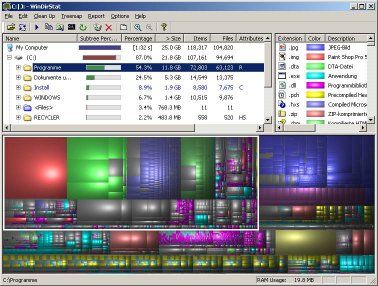
If you are always running out of disk space, this is the tool for you. It shows you your big folders and files and has a nice little map of your drive.

If you want something to work cross platform see some other suggestions from lifehacker:


Free : YES


Thursday, 12 February 2009

Facebook Connect on Blogger

This post is to test out using facebook connect on blogger using disqus.

So leave a comment and see what happens.

I followed the instructions from:

http://manofmanywords.blogspot.com/2008/12/do-you-have-blog-on-blogger-wordpress.html

Monday, 26 January 2009

Export SQL Server tables to Excel in c#

This piece of code executes a sql query on a sql server database and returns the result into a excel workbook (with column headings included).

Remember to add the following references (Project > Add Reference > COM)

Microsoft Excel 12.0 Object Library (or an older version)


using System;
using System.Collections.Generic;

using System.Linq;
using System.Text;
using System.Data.SqlClient;

using Excel = Microsoft.Office.Interop.Excel;
using System.Reflection;

namespace ExportDBTablesToExcel
{
class ExportToExcel
{

private Excel.Application app ;

private Excel.Workbook workbook;
private Excel.Worksheet previousWorksheet;

private Excel.Range workSheet_range;

private string folder;

private static string CONNECTION_STR = "Data Source=(local);Database=DATABASE_NAME;"
+ "Integrated Security=SSPI;";


public ExportToExcel(string folder)
{

this.folder = folder;

this.app = null;
this.workbook = null;

this.previousWorksheet = null;
this.workSheet_range = null;


createDoc();
}

private void createDoc()

{
try
{
app = new Excel.Application();

app.Visible = false;
workbook = app.Workbooks.Add(1);


}
catch (Exception e)
{
Console.Write(e.ToString());

}
finally
{
}
}

public void shutDown()

{
try
{
workbook = null;

app.Quit();
}
catch (Exception e)

{
Console.Write(e.ToString());
}

finally
{
}
}

public void ExportTable(string query,string sheetName)

{
SqlConnection myConnection = new SqlConnection(CONNECTION_STR);

SqlDataReader myReader = null;

try
{

Excel.Worksheet worksheet = (Excel.Worksheet)workbook.Sheets.Add(Missing.Value, Missing.Value, 1, Excel.XlSheetType.xlWorksheet);

worksheet.Name = sheetName;

previousWorksheet = worksheet;


myConnection.Open();


SqlCommand myCommand = new SqlCommand(query,
myConnection);

myReader = myCommand.ExecuteReader();

int columnCount = myReader.FieldCount;

for (int n = 0; n < columnCount; n++)

{
Console.Write(myReader.GetName(n) + "\t");

createHeaders(worksheet, 1, n + 1, myReader.GetName(n));

}

int rowCounter = 2;
while (myReader.Read())

{
for (int n = 0; n < columnCount; n++)

{
Console.WriteLine();
Console.Write(myReader[myReader.GetName(n)].ToString() + "\t");

addData(worksheet, rowCounter, n + 1, myReader[myReader.GetName(n)].ToString());

}
rowCounter++;
}


}

catch (Exception e)
{
Console.WriteLine(e.ToString());

}
finally
{
if (myReader!=null && !myReader.IsClosed)

{
myReader.Close();
}

if (myConnection != null)

{
myConnection.Close();
}

myReader = null;
myConnection = null;
}

}


public void createHeaders(Excel.Worksheet worksheet,int row, int col, string htext)

{
worksheet.Cells[row, col] = htext;


}

public void addData(Excel.Worksheet worksheet,int row, int col, string data)

{
worksheet.Cells[row, col] = data;

}


public void SaveWorkbook(){

String folderPath = "C:\\My Files\\" + this.folder ;

if (!System.IO.Directory.Exists(folderPath)) {

System.IO.Directory.CreateDirectory(folderPath);

}

string fileNameBase = "db" ;
String fileName = fileNameBase;
string ext = ".xlsx" ;
int counter = 1 ;

while (System.IO.File.Exists(folderPath+fileName+ext)){

fileName = fileNameBase + counter;
counter++ ;
}

fileName = fileName +ext ;

string filePath = folderPath + fileName ;

try
{
workbook.SaveAs(filePath, Excel.XlFileFormat.xlWorkbookDefault, Missing.Value, Missing.Value, Missing.Value, Missing.Value, Excel.XlSaveAsAccessMode.xlNoChange, Missing.Value, Missing.Value, Missing.Value, Missing.Value, Missing.Value);

}
catch (Exception e)
{
Console.WriteLine(e.ToString());

}
}


static void Main(string[] args)

{

ExportToExcel export = new ExportToExcel(args[0]);

export.ExportTable("SELECT * FROM t_table1","t_table1");
export.ExportTable("SELECT * FROM t_table2","t_table2");
export.ExportTable("SELECT * FROM t_table3","t_table3");
export.SaveWorkbook() ;

export.shutDown();
}


}

}


This code is based on the following links:

http://www.codeproject.com/KB/cs/Excel_and_C_.aspx

and
http://www.codeproject.com/KB/database/sql_in_csharp.aspx?fid=16002&df=90&mpp=25&noise=3&sort=Position&view=Quick&fr=26&select=1490011